This page is a quick tour of the File Manager screen so you know where everything is. The screen has four main areas: the top bar, the toolbar, the navigation pane on the left, and the file list in the centre.
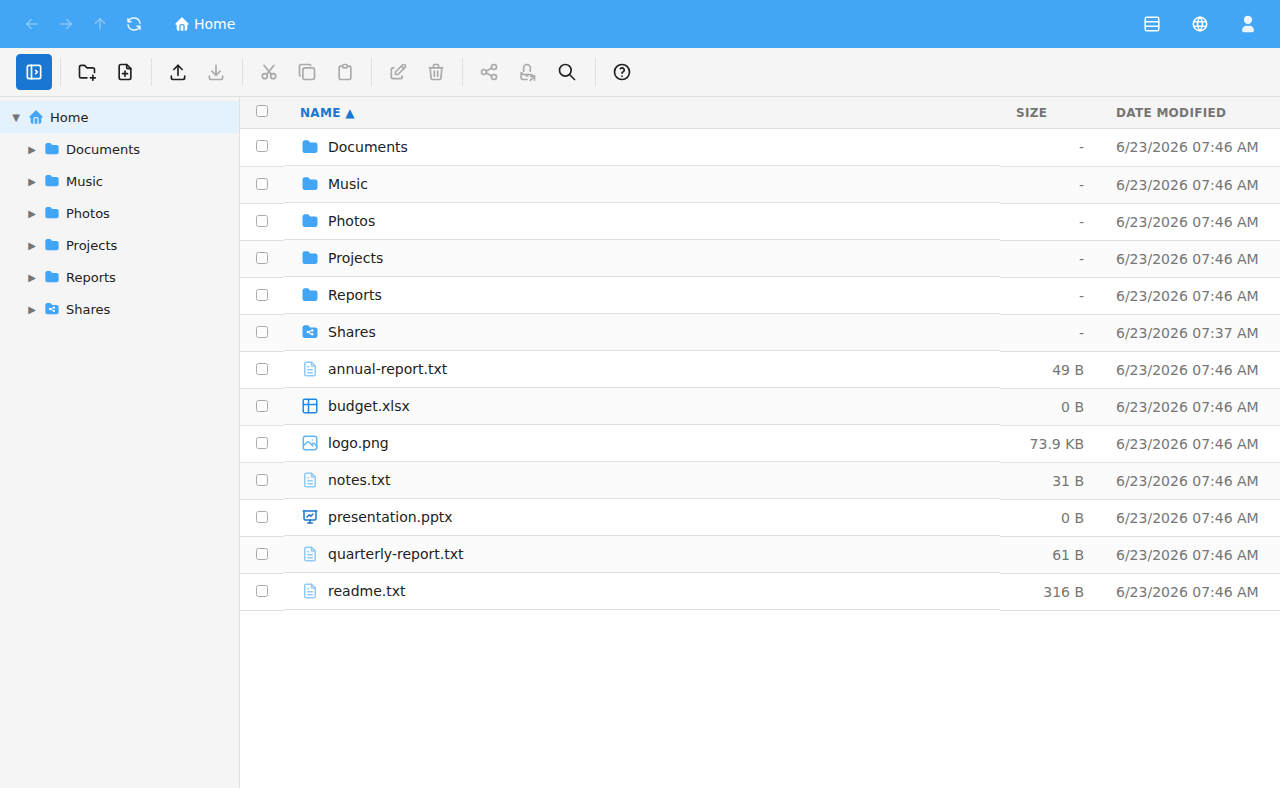
The top bar (the header) runs across the top of the window. From left to right it contains:
The toolbar sits just below the header and holds the buttons you use most. Starting on the left there is a button to show or hide the navigation pane, followed by:
Buttons that don't apply to your current selection or permissions appear greyed out. The toolbar also shows the selection text, such as "3 items selected", so you can see at a glance how many items your next action will affect — see Selecting files.

The navigation pane on the left shows a tree of your folders, making it easy to move around without opening one folder at a time. You can show or hide it with the toggle button at the left of the toolbar. See Navigating folders for how to use it.
The file list in the centre shows the files and folders in the current folder, laid out in the columns Name, Size and Date Modified. Each row has a checkbox for choosing the items you want to work with — see Selecting files. When a folder has nothing in it, the list shows "This folder is empty".
You can open this guide at any time by clicking the Help button on the toolbar or by pressing F1.