There are several ways to move around your folders. Use whichever is quickest for what you're doing.
To open a folder you can:
Note that a single click on a folder in the file list opens it. If you want to select a folder without opening it, click its checkbox instead — see Selecting files.
The navigation pane on the left shows your folders as a tree. Click the arrow beside a folder to expand or collapse it, and click the folder name to open it. You can show or hide the whole pane with the toggle button on the toolbar, which is handy when you want more room for the file list.
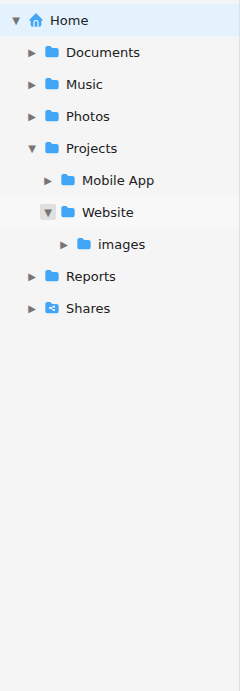
The breadcrumb in the top bar shows the path from Home down to the folder you are currently in. Click any part of it to jump straight to that folder.

The navigation buttons let you retrace your steps:
A button is greyed out when it doesn't apply — for example, Up is greyed out when you are already at the top level.
For a tour of where these controls live, see The interface.