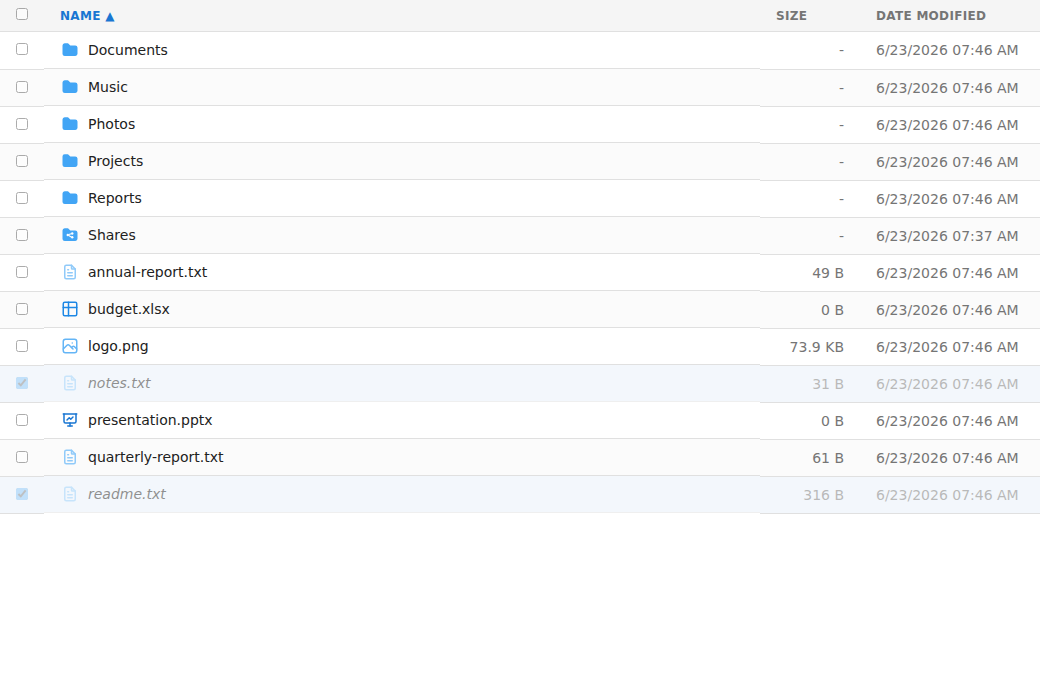
Use copy and paste to duplicate items in another location, and cut and paste to move them. These actions are available on the toolbar, in the right-click menu, and (on narrow screens) in the Actions menu (☰) — see Right-click menus for more.
Copy or cut
First select the items you want — see Selecting files — then:
Copy (toolbar, right-click → Copy, or Ctrl+C) remembers the items so you can duplicate them elsewhere.
Cut (toolbar, right-click → Cut, or Ctrl+X) remembers the items so you can move them. Cut items appear faded.
Click Paste on the toolbar (or right-click an empty part of the file list and choose Paste, or press Ctrl+V).
Copy duplicates the items into the destination; Cut moves them there.
The clipboard indicator
After copying or cutting, the toolbar shows how many items are waiting — for example "3 items copied" or "3 items cut". Click that text to see what's on the clipboard or to clear it.
Permissions and restrictions
You can't paste back into the same folder you copied or cut from.
You need write permission in the destination folder.
If an item with the same name already exists in the destination, you'll be asked to Skip or Overwrite it. An "Apply to all" option lets you make the same choice for the remaining items.
Files can't be moved out of the Shares folder — copy them instead.