You can add files from your computer to the current folder by uploading them.
The Upload command is also available on the Actions menu (☰).

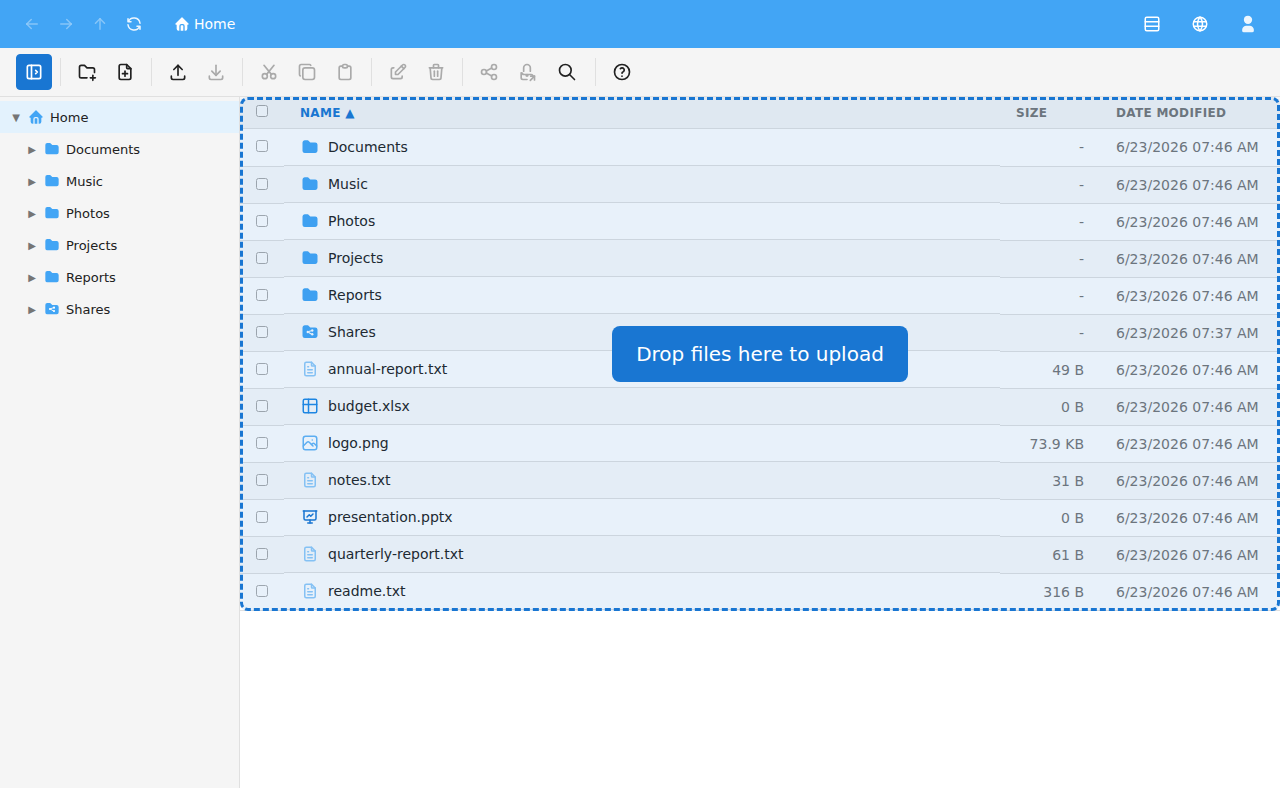
You can also drag files from your computer onto the file list. A Drop files here to upload area appears; release the mouse to start the upload.
Progress is shown in the upload tray. Each file shows its status — pending, uploading, done or error — together with an overall percentage. You can collapse or expand the tray, and Cancel stops any remaining uploads.

If a file of the same name already exists, you'll be asked to Skip or Overwrite it. An Apply to all option lets you make the same choice for the remaining duplicates.
You need write permission in the current folder to upload. Without it, Upload is greyed out.
See also Downloading files and Creating folders and files.