You can create new, empty folders and files directly in the File Manager. Each of these actions is available on the toolbar, in the right-click menu, and (on narrow screens) in the Actions menu (☰) — see Right-click menus for more.
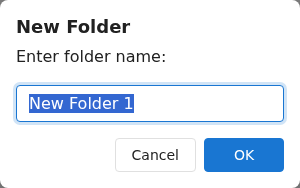
Click New File on the toolbar (or right-click an empty part of the file list and choose New File, or press Ctrl+Shift+F) to create an empty file. As with folders, type a name and confirm.
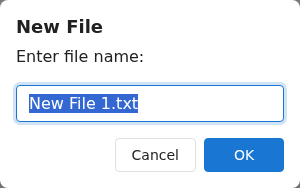
Names must be unique within the folder — you can't create an item whose name matches one that already exists there.
You need write permission in the current folder. If you don't have it, the New Folder and New File buttons are greyed out.
To change the name of an item later, see Renaming. To bring in files from your computer instead of creating empty ones, see Uploading files.