Sharing lets you create a link that other people can use to download your files, even if they don't have an account.
Note: Sharing is only available if your administrator has enabled it. If it isn't, the share buttons won't appear.
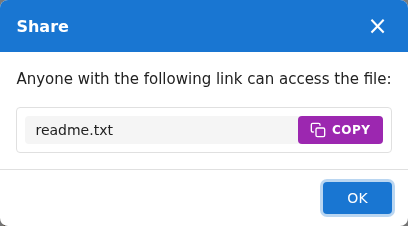
Folders are shared as a ZIP archive. Right-click a folder and choose Share as ZIP, or Share as ZIP with Password to require a password.
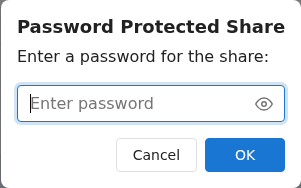
For a password share, enter a password that is at least 4 characters long, with no space at the start or end.
A share link is created and the item is added to your Shares folder. Copy the link and send it to whoever needs it.
To review, change or stop your shares later, see Managing shares.