
Connecting to Your SFTP Server with FileZilla and WinSCP: A Step-by-Step Guide
The people connecting to an SFTP server are usually not the person who built it. They have been sent a hostname, a username and either a password or a key file, and they need a client that turns those details into a working file transfer. FileZilla and WinSCP are the two clients they most often reach for.
The client-side instructions apply to any standards-compliant SFTP server, and the server-side section uses CompleteFTP as the concrete example, so an administrator can set up the matching account while the user follows the client half.
Which client should you use?
Both clients speak the same protocol to the same servers, so the decision comes down to which operating system you are on and which interface you find easier to read.
FileZilla
FileZilla is a cross-platform client for Windows, macOS and Linux, which makes it the practical default in a mixed environment where you would rather write one set of instructions than three. It supports FTP, FTPS and SFTP. The window puts local files on the left and remote files on the right, with a transfer queue along the bottom and a message log at the top showing the raw conversation with the server, which is the first place to look when a connection misbehaves.
Connections can be made ad hoc through the Quickconnect bar or saved permanently in the Site Manager. The FileZilla project also publishes a server product and a paid Pro client, but the free client is the one this guide describes.
WinSCP
WinSCP is a Windows-only client that supports FTP, FTPS, SFTP and SCP. It offers a dual-pane Commander interface for people who want local and remote side by side, and an Explorer-style interface for people who would rather it behaved like a Windows folder window, either of which can be chosen during installation and changed later in preferences.
WinSCP also has a scripting and command-line facility that is useful when a manual transfer eventually turns into a scheduled one, and it integrates with PuTTY for terminal sessions and key management.
A quick comparison
| FileZilla | WinSCP | |
|---|---|---|
| Platforms | Windows, macOS, Linux | Windows |
| Protocols | FTP, FTPS, SFTP | FTP, FTPS, SFTP, SCP |
| Interface | Dual pane | Dual pane or Explorer style |
| Saved connections | Site Manager | Stored sites |
| Private key format | PuTTY PPK, converts on import | PuTTY PPK, converts on import |
| Scripting | Limited | Scripting and .NET assembly |
| Licence | Free, open source | Free, open source |
What your server administrator needs to give you
Five pieces of information cover almost every SFTP connection, and chasing them one at a time across a week of email is the slowest part of the exercise. Ask for all of them at once:
- Hostname or IP address, as reachable from where you are sitting. An internal name that resolves on the office network may not resolve from home.
- Port number. SFTP uses port 22 by default, and if your administrator has moved it the client needs the real number.
- Username, which may or may not match your Windows or network login.
- Password, or a private key. If you are using key authentication, the stronger practice is to generate the keypair yourself and give the administrator only the public half, so the private key never leaves your machine. Where the administrator instead issues you a private key file, have it delivered through a channel you trust with the passphrase sent separately.
- The server's host key fingerprint, so that you can check it on the first connection rather than clicking through a warning you have no way to evaluate.
A host key fingerprint is a short hash of the server's public host key, shown as a line of random-looking characters, and it is the item that makes the first connection verifiable. Comparing the fingerprint your client displays against one supplied through a separate channel is how you confirm you have reached the real server and not something intercepting the connection.
Fingerprints also differ for legitimate reasons, which is part of what makes an unverified one hard to reason about. A logistics operator running two servers behind a load balancer described the effect:
"We do run 2 instances of SFTP using CompleteFTP behind an F5 load balancer which works great. Occasionally we do have a problem of different fingerprints being received when a client connects to a different pool member from the LB."
Connecting with FileZilla
A first connection with a password
The Quickconnect bar across the top of the window takes a host, username, password and port, and connects immediately without saving anything, which makes it the fastest way to prove that the account works.
Enter the server address, and prefix it with sftp:// to tell FileZilla you want SFTP rather than FTP. Fill in the username and password, leave the port blank if the server uses the standard port 22, and connect. If the server is on the same machine you are testing from, localhost or 127.0.0.1 will do. Without the prefix, FileZilla attempts plain FTP, and a server that offers only SFTP drops that connection with an error that rarely points at the real cause.

Saving the connection in the Site Manager
Once a Quickconnect session works, the details can be copied into the Site Manager from the File menu, which saves re-typing them and lets you name the connection something a human recognises. A saved site also holds settings Quickconnect has nowhere to put, including the logon type, a key file, a default remote directory and the character encoding.
Using a private key
Key authentication needs a keypair. The private half stays on the user's machine and is never sent anywhere; the public half is registered with the server, which uses it to check a signature the client produces at login.
In the Site Manager, create a site with the protocol set to SFTP and the logon type set to Key file, then browse to your private key. The file dialog filters for PuTTY's PPK format by default, so if your key came from OpenSSH or in another format, switch the filter to show all files. FileZilla offers to convert the key to PPK and uses the converted copy from then on. Keep the original as well, because other tools will want it.
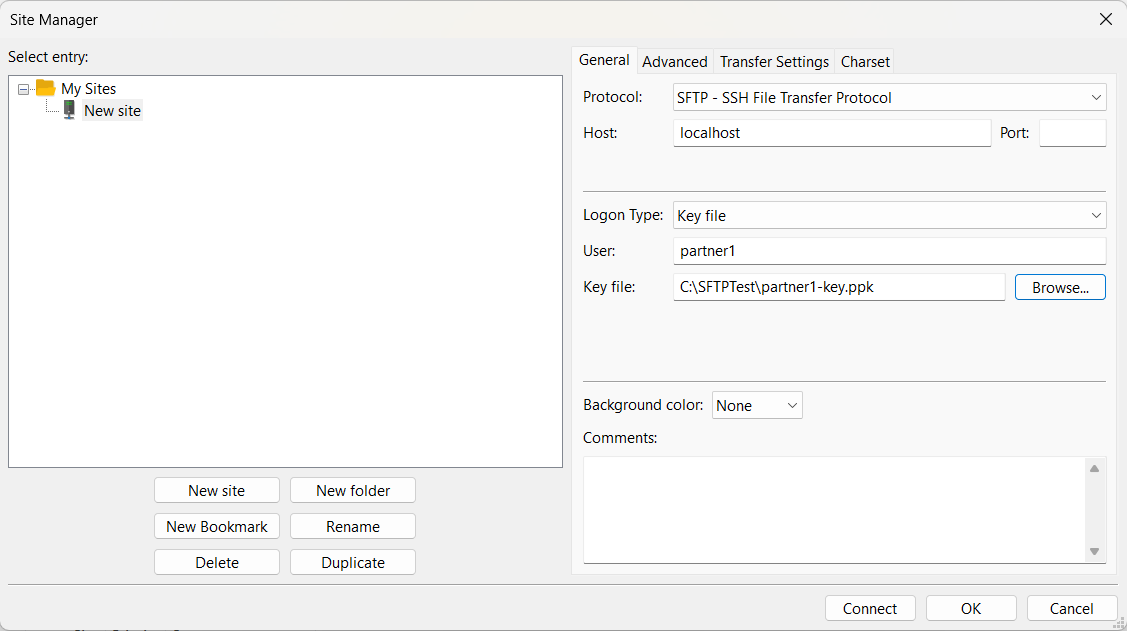
If the key has a passphrase, FileZilla asks for it when connecting. Without a passphrase, anyone who copies the private key file can use it directly, so a key issued without one should be treated as short-lived.
Verifying the host key fingerprint
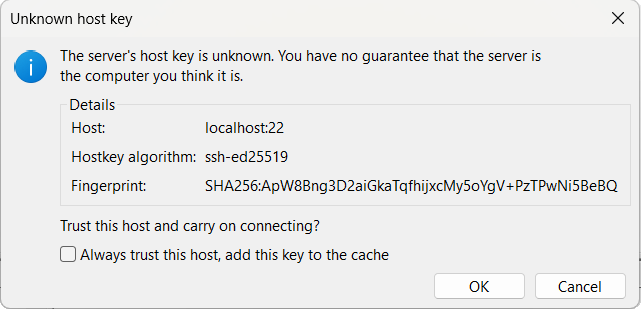
On the first connection to a given host, FileZilla shows the server's host key and asks whether to trust it. Compare the fingerprint in that dialog with the one your administrator gave you, character by character across at least the first and last groups, and accept only if they match. Once accepted, the key is cached and the prompt does not appear again for that host, so a later warning that the key has changed should not be clicked through without checking.
Common FileZilla gotchas
- Wrong protocol. A missing
sftp://prefix in Quickconnect, or a site left on FTP in the Site Manager, produces connection failures that look like server problems. - Port confusion. SFTP is port 22 by default and FTP is 21, so entering 21 with SFTP selected reaches a service that does not speak the protocol.
- The PPK filter. Users frequently conclude their key file is missing because the browse dialog is filtering it out.
- Simultaneous connections. FileZilla opens more than one connection per site, and a server with a low per-user connection limit will refuse the extras. The limit is adjustable in the site's transfer settings.
Connecting with WinSCP
The login dialog
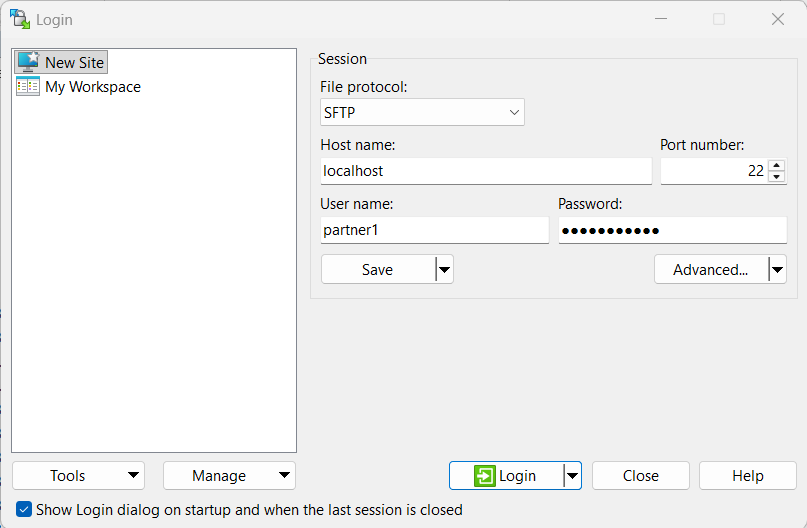
WinSCP opens on a login window that asks for everything at once: file protocol, host name, port number, user name and password. Choose SFTP as the file protocol, enter the host and the port (22 unless told otherwise), and fill in your credentials. Selecting FTP instead reveals an Encryption drop-down that chooses between plain FTP and FTPS, which are unrelated to SFTP despite the similar names.
Saved sessions
Saving the session from the login dialog stores the connection under a name of your choosing and makes it available from the list the next time WinSCP starts. WinSCP can save the password along with the session, and it will tell you plainly that a saved password can be recovered by anyone able to use your Windows account, with a master password available as protection on top.
On a shared or unattended machine, key authentication is a better answer than a stored password, because the private key carries its own passphrase and can be revoked on the server without changing anything else about the account.
Using a private key
WinSCP takes a private key in the same PPK format FileZilla uses, configured in the session's SSH authentication settings rather than in the main login fields. Point it at your key file, and if the key is in OpenSSH format WinSCP offers to convert it and save a PPK copy.
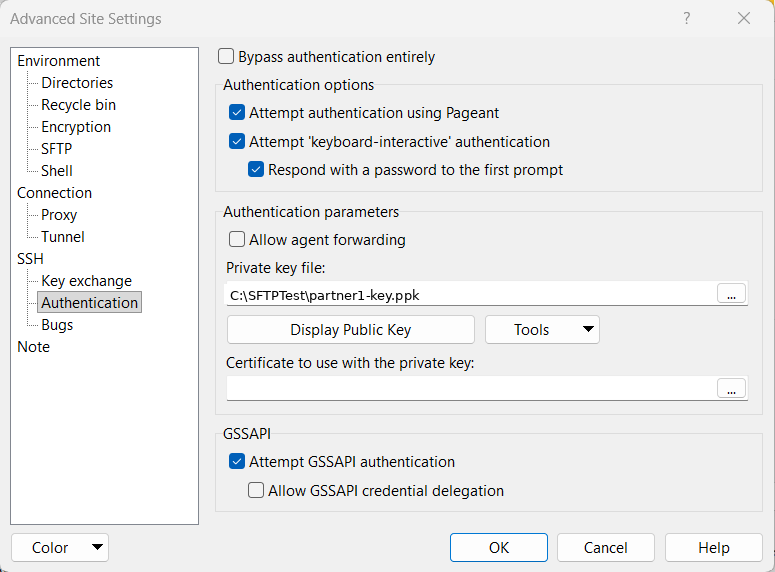
WinSCP ships alongside PuTTY's tools, so PuTTYgen is generally available for generating keys, converting formats and displaying the public key in the single-line form that servers expect. Once the key is configured, connect and supply the passphrase when asked; a successful key login goes straight to the file panes without prompting for the account password.
Verifying the host key fingerprint
WinSCP shows the server's host key fingerprint on the first connection and asks you to confirm it, and as with FileZilla the check is only meaningful against a fingerprint obtained separately from the connection you are making. WinSCP also lets you record the expected fingerprint in a saved session in advance, which suits administrators handing out pre-built session files to a group of users.
After connecting, the server may display a banner message configured by the administrator before the file panes appear, and dismissing it is expected.
Common WinSCP gotchas
- SCP instead of SFTP. Both appear in the same protocol list and both run over SSH on port 22, so a server with SFTP enabled but SCP disabled will refuse the session while the credentials themselves are good.
- Keys in the wrong place. The private key setting sits in the advanced SSH authentication page, not on the login screen, which is where people look first.
- Timestamps. WinSCP preserves file timestamps by default, and on servers that disallow the operation this surfaces as a warning at the end of an otherwise successful transfer.
Setting up the matching account on CompleteFTP
The administrator's half of this exercise is a user account whose authentication settings match what the client offers. In CompleteFTP those settings live in two places, both described in the user guide.
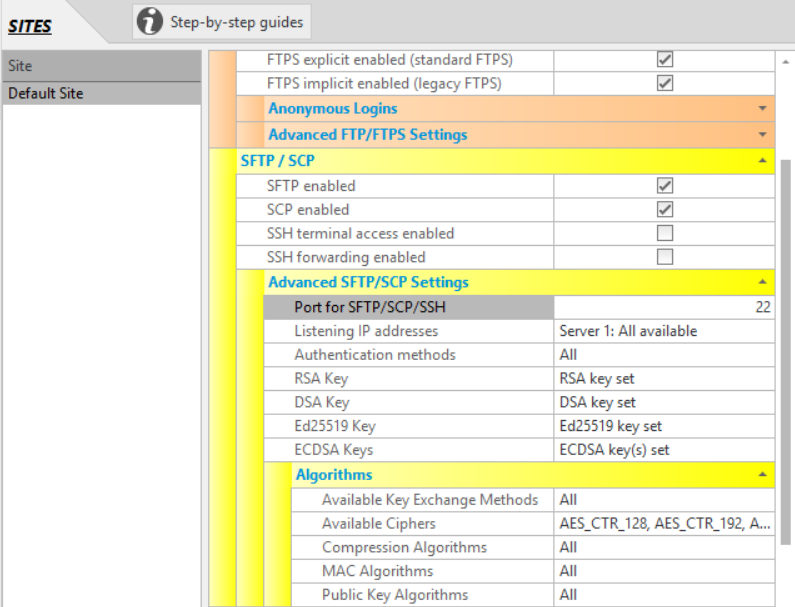
On CompleteFTP's default site, SFTP is already enabled on port 22 out of the box; on a site you have created yourself, enable it under Settings in the SFTP/SCP/SSH section, along with the port, the listening addresses and the accepted authentication methods. SFTP is not available in the Free Edition; the Standard Edition supports it, and the Professional Edition and Enterprise MFT add SCP and SSH terminal access. Settings take effect only after Apply Changes.
For password authentication
Add the user (a Windows user, a non-Windows user, or a user from an external database), give them a password and a home folder, and confirm that Password is among the site's SFTP authentication methods. Nothing further is needed on the client side. The password can also be validated against a directory you already run, either Active Directory and Windows domain accounts or LDAP for other directory services, so the SFTP account need not carry a separate password. CompleteFTP also supports SAML single sign-on, but only through its HTTPS web interface, not for SFTP clients such as FileZilla and WinSCP.
For public key authentication
Public key authentication is enabled by default in the site's SFTP settings, and the user needs a public key registered against their account. Select the user, open the Manage Public Keys dialog from the ellipsis next to Public keys in the user's properties, and either generate a keypair or import an existing public key. Importing a key the user generated themselves is the better habit, because the private key never leaves their machine.
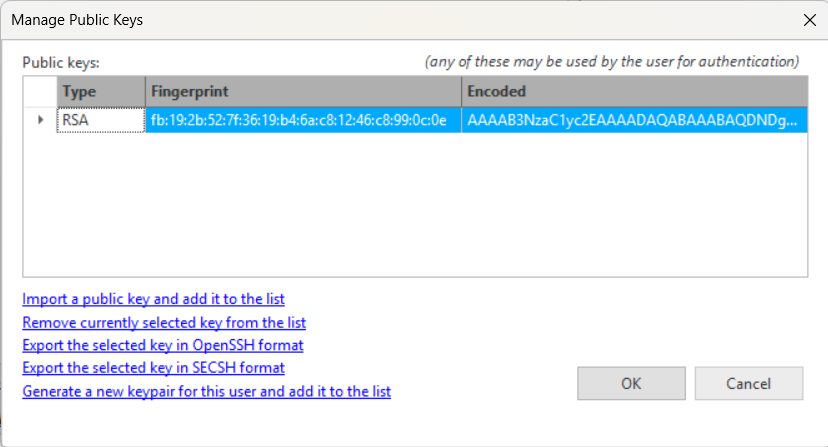 Professional Edition and Enterprise MFT allow multiple keys per user, so a key can be rotated without a gap.
One constraint catches people out. Public key authentication on its own does not work for Windows users, because Windows requires a password to log the account in, so those users need Password or PublicKeyAndPassword.
For either method
The site's authentication methods and the user's are combined, and only methods enabled in both are available to that user. Per-user authentication methods are an Enterprise MFT feature; in the other editions the site setting governs everyone. If the site permits password only and a user is set to password and public key, the user gets password only, which is the usual explanation for a key that works for one account and not another.
The server's own host keys are generated during installation, and the public halves can be exported from the advanced SFTP settings. Including the fingerprint in your onboarding email gives users something to check against on that first connection.
Stuck connecting to a server? Ask our AI assistant
Troubleshooting connection failures
When a connection fails, the quickest way to see why is usually the server side. The Manager's Monitoring panel shows real-time logging as connection attempts arrive, which turns a vague client-side error into a specific server-side reason.
Server unexpectedly closed connection. The client reached something and it hung up. The usual causes are a protocol mismatch (an FTP client arriving on the SSH port), the service not running, or the client's address being blocked. CompleteFTP can ban an address automatically after repeated failed logins within a set period, so a user who mistyped a password several times may find later attempts refused even with the correct one. The administrator can see and lift these bans in the Manager's Monitoring panel, under the auto-banned IP addresses tab.
Authentication failed. Re-check the username and password by testing them directly rather than trusting what you remember them to be, then check the authentication methods at both site and user level, since only the methods enabled in both are offered. For key logins, confirm that the public key registered on the server matches the private key the client is presenting, which is easy to get wrong when a user has several keys.
Network unreachable, connection timed out, or a firewall message. SFTP carries commands and data over one port, 22 by default, so the diagnosis is simpler than it is for FTPS. If a plain TCP connection to that port fails from the client machine, check the firewall on the server, any network firewall in the path, and whether the address resolves from where you are.
Host key verification failed, or the key has changed. The cached fingerprint for that hostname does not match what the server presented. A reinstalled server generates new host keys, so a rebuild produces this warning for every user unless the original keys were imported. Verify the new fingerprint out of band, then remove the stale entry from the client's cache.
More on firewall behaviour, including the complications specific to FTPS, is in the firewalls section of the user guide.
Frequently asked questions
How do I connect FileZilla to an SFTP server?
Set the protocol to SFTP, then enter the hostname or IP address, the port (22 unless your administrator has changed it), and your username. In the Quickconnect bar, prefixing the address with sftp:// selects the protocol. On the first connection, compare the host key fingerprint FileZilla displays against the one your administrator gave you before accepting it.
How do I use a private key with FileZilla?
Create a site in the Site Manager, set the protocol to SFTP and the logon type to Key file, then browse to your private key. The dialog filters for PuTTY's PPK format by default, so choose the option that shows all files if your key is in OpenSSH format, and FileZilla will offer to convert it.
What is the difference between FileZilla and WinSCP?
FileZilla runs on Windows, macOS and Linux and supports FTP, FTPS and SFTP. WinSCP runs on Windows only, adds SCP, offers an Explorer-style interface as well as a dual-pane one, and includes a scripting facility. Both connect to any standards-compliant SFTP server, so the choice is mostly about platform and interface preference.
Does FileZilla support SFTP?
Yes, the FileZilla client supports FTP, FTPS and SFTP, and SFTP runs over SSH on port 22 by default. Select it from the protocol list in the Site Manager, or prefix the address with sftp:// in the Quickconnect bar.
How do I save my SFTP password in WinSCP?
Save the connection as a stored site and allow WinSCP to save the password with it, noting the warning that a saved password can be recovered by anyone with access to your Windows account. A master password adds protection on top, and on a shared machine key authentication is the better answer.
Can I use FileZilla on Mac or Linux?
Yes, the FileZilla client is available for Windows, macOS and Linux, and the connection settings are identical on all three. WinSCP is a Windows application, so macOS and Linux users generally choose FileZilla, Cyberduck, or the OpenSSH sftp command.
Why does my client say the host key has changed?
The client cached a fingerprint for that hostname earlier and the key it received this time does not match. The usual innocent cause is a rebuilt server, because a fresh installation generates new host keys unless the old ones are imported. Confirm the new fingerprint with your administrator before accepting it.
Where this fits
If you are still choosing a server, the SFTP server guide covers the selection, and MFT versus SFTP covers the point at which file transfer grows into a workflow problem. CompleteFTP is available as a free trial, which is enough to stand up a test account and walk a user through their first connection before either of you touches production. Our documentation covers the same client walkthroughs with current screenshots, for FileZilla and for WinSCP.
Other technical articles
- CompleteFTP and AI agents
- Free SFTP Server for Windows: What's Actually Free (and What's Worth Paying For)
- Hardening SSH/TLS Ciphers to Pass a Pen Test (2026)
- High Availability SFTP: Active-Active Clustering on Windows
- How SSL,TLS and SSH work
- How secure is SFTP?
- How to Set Up an Enterprise-Grade SFTP Server on Windows (Beyond OpenSSH)
- How to Set Up an SFTP Server to Receive Files From External Partners
- Key Differences Between MFT and SFTP
- Migrating Your File Transfer Server to a New Machine (Without Losing Your License)
- SFTP Audit Logs for Compliance: What Auditors Actually Want
- SFTP Automation: The Two Approaches and When to Use Each (2026)
- SFTP Encryption at Rest: How It Works and How to Enable It
- SFTP Server for Windows: Options and How to Choose (2026)
- SFTP Server with Active Directory: 2026 Setup Guide
- SFTP and FTPS Ports Explained: 22, 21, 990 and the Passive Range That Breaks Firewalls
- SFTP vs FTPS: Which Secure Transfer Protocol to Use
- Reporting a security issue
- Self-Hosted SFTP with S3, Azure, SharePoint or Google Cloud Storage Backend
- What is FTP?
- What is FTPS?
- What is Managed File Transfer (MFT)?